| Getting Started
–
Sending a CrazyMessenger A messenger is a personalized
talking message spoken by the character of your choice, in
the form of an executable file. You can email this file to
your friends as an attachment.
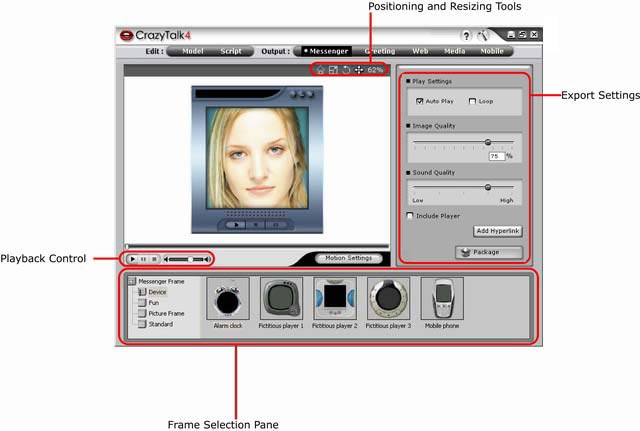
To create a messenger, do the following:
-
Select a CrazyTalk model for your messenger
and specify its facial features, type of motion, expressions,
etc.
-
Create a CrazyTalk script to specify the animation
and speech for the messenger.
-
Click the Messenger
tab under Output to start creating a CrazyMessenger.
-
Browse through the frame selection pane and double-click
a frame of your choice to apply it to the talking image.
The result is displayed in the preview window. Use the
playback controls
to test and preview the messenger.
-
Click Resize Model  to change the size of the talking image to fit the
messenger frame. After clicking this icon, click and drag
across the image to change the size of the image. Drag
down to reduce the size of the image and drag up to increase
the size of the image. to change the size of the talking image to fit the
messenger frame. After clicking this icon, click and drag
across the image to change the size of the image. Drag
down to reduce the size of the image and drag up to increase
the size of the image.
-
Click Rotate Model to rotate the talking image. After selecting this option,
click and drag in clockwise or counter clockwise direction
to rotate the image in the desired direction. to rotate the talking image. After selecting this option,
click and drag in clockwise or counter clockwise direction
to rotate the image in the desired direction.
-
Click Move Model  to move the talking image within the messenger frame.
After clicking this icon, select and drag the talking
image to set its position in the frame. to move the talking image within the messenger frame.
After clicking this icon, select and drag the talking
image to set its position in the frame.
-
Click Reset Model  to reset any changes in position or size that you have
made for the talking image. Use this button if you are
not satisfied with the positioning and start the process
again. to reset any changes in position or size that you have
made for the talking image. Use this button if you are
not satisfied with the positioning and start the process
again.
-
To specify the Playback
Settings, do the following:
-
Check the Auto Play
box to start the talking image playback automatically.
-
Check the Loop box
to play the talking message repeatedly.
-
To specify the image quality, do one of the following:
-
Move the Image Quality
slider to adjust the image quality.
-
Alternatively, enter a number in the Image Quality box to specify the video quality.
-
To specify the sound quality, move the Sound Quality slider to adjust the audio quality.
-
To create an executable file, click the Package button. The Save As dialog box opens. Specify the name
and location of the messenger file and click Save when done.
|
|
|