| Getting Started
-
Creating a CrazyTalk Script The Script
page is the critical phase in CrazyTalk's process of
creating a talking image. Here you decide what and how your
model talks and specify the expressions, facial movements,
and special effects that go along with the animated script.
You can select speech from the template scripts or you can
create your own. The script for the talking image can be imported
from a WAV audio file, recorded from a voice recorder, or
converted from a text message by a text-to-speech converter.
You can also import a WAV file to be used as the background
music along with the talking message.
Note: You can download
the text-to-speech converter from Microsoft, or browse
to Reallusion's website
for more information.
You can select an expression from the Emotives to specify
the voice and mood attributes. Each emotive consists of a
set of voice and facial expressions, accompanied by facial
movements. This sets the mood for the talking model. In addition,
you can add more specific facial expressions, movements for
the eyes, head, shoulders, and lips to create a very realistic
talking model.
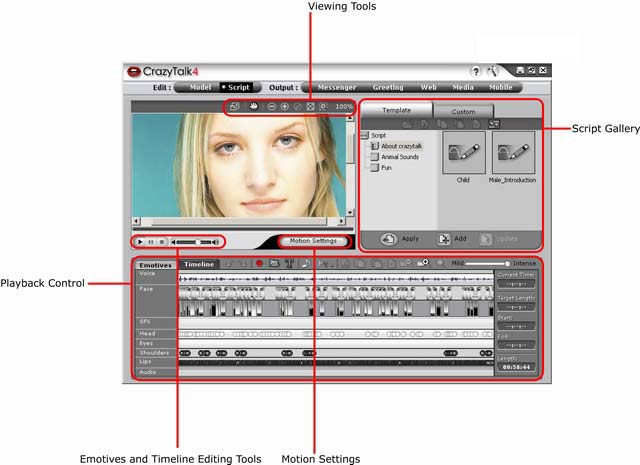
Select Script under
Edit to view the script page which
consists of the following tools:
To create a Talking Message:
-
To specify the speech for the talking model, do one of
the following:
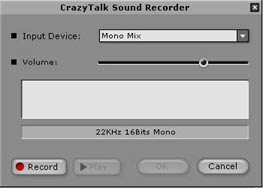
Click the Record button to start recording. Recording from
the specified audio source starts.
-
To import WAV files, click the Import
Wave File  button to import a speech file in PCM WAV format.
Specify the name and location of the WAV file using
the dialog box. and click Open
to open the file. The file is imported and used as the
script text. button to import a speech file in PCM WAV format.
Specify the name and location of the WAV file using
the dialog box. and click Open
to open the file. The file is imported and used as the
script text.
-
To convert text to speech, do the following, click
the Edit by Text-To-Speech  button. The TTS dialog box opens. button. The TTS dialog box opens.
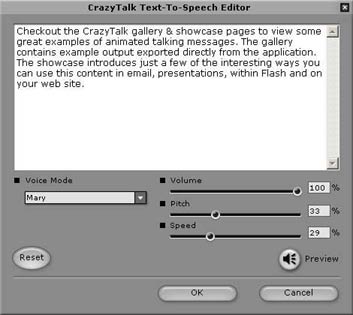
Type the text in the editor window.
Alternatively, you can also copy the text from your favorite
word processing program. Select the type of voice to be used
by the model for speaking, using the Voice Mode drop-down box. Adjust the voice quality
to achieve a real-life effect using the Volume, Pitch, and Speed sliders. Click the Preview  button to play back the text. Click OK when done. button to play back the text. Click OK when done.
-
To insert background music, click the Background Audio  button. The background music dialog box opens. button. The background music dialog box opens.
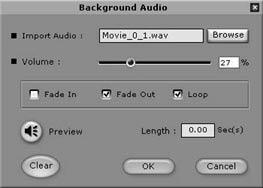
Click the Browse button to import a song or musical track
in PCM WAV format. Move the Volume
slider to adjust the volume. Check the Fade
In or Fade Out
options to specify if you want the background audio to fade
in or out respectively. Check the Loop box to repeat the background music continuously.
Click Preview to play
back the background audio. Click OK
when done.
-
To select an expression profile, click the Emotives tab to view a set of basic profiles
such as sad, angry, happy, and so on. Select the desired
profile from the and double-click it to apply.
-
You can adjust the strength of the expression on the
model's face using the  slider. Move the slider towards Intense for stronger expression. Move the slider
towards Mild for
expressions with a lower intensity. slider. Move the slider towards Intense for stronger expression. Move the slider
towards Mild for
expressions with a lower intensity.
-
Click the Timeline tab
to edit the animation script. See the following steps
to see how to change the expressions or voice effects,
add special effects, and control movements of the eyes,
head, shoulders, and lips.
-
You can view the complete script or enlarge portions
of the sequence using the track viewing tools. Click
Zoom In  to zoom in, Zoom
Out to zoom in, Zoom
Out  to zoom out, and Zoom Out Full to zoom out, and Zoom Out Full  to zoom out and view the complete script in the sequence
window. to zoom out and view the complete script in the sequence
window.
-
CrazyTalk provides basic editing tools to cut, copy,
paste, or delete portions of the track. You can edit
the speech as well as the facial movements and expressions
using these tools. Use Cut  , Copy , Copy  , Paste , Paste  , Delete , Delete  to edit the track. to edit the track.
|











 button. The sound recorder menu opens.