| Getting Started
-
Exporting for Web You can now export your talking
image, animation script, as well as the model into HTML format
and reuse them in your HTML web pages. CrazyTalk now lets
you export the data as well as the HTML code for using the
talking message.
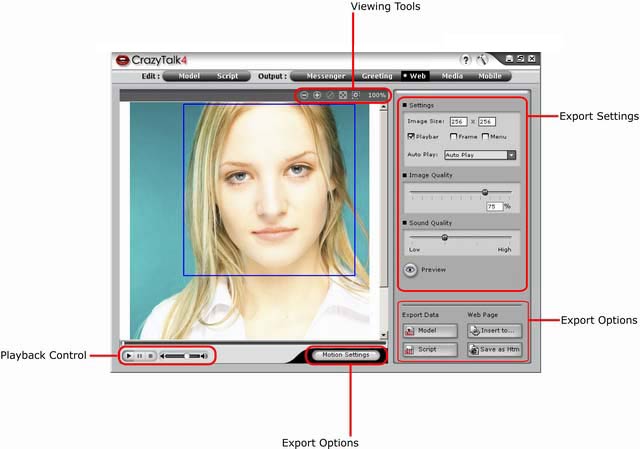
To export to web, do the following:
-
Select a CrazyTalk model and specify its facial
features, type of motion, expressions, etc.
-
Create a CrazyTalk script to specify the animation
and speech for the model.
-
Click the Web tab
under Output to start exporting to web or HTML format.
-
A crop box is displayed on the model. Using the moving
tools, move it over the image to decide which portion
of the image is exported. Resize the box to specify the
output frame size. You can also resize the cropping frame
using the next step.
Note:
When the crop box is smaller than picture’s actual size, it is red; otherwise, it will be
blue.
-
Specify the dimensions of the talking image by entering
the width and height under Image
Size.
-
Check the Playbar
option if you want to display a playback control bar in
the HTML file.
-
Check the Frame
option if you want to display the playback controls in
a frame on top of the talking image.
-
Check the Menu
option if you want to display the playback controls in
the right-click context menu.
-
Select an autoplay option from the Auto
Play drop-down box. You can select Auto
Play to start playback automatically or Loop to play the message repeatedly. You can
also select Auto Play
and Loop to enable both options or No
to disable both options.
-
Move the Image Quality
slider to adjust the image quality. Alternatively, enter
a number in the Image Quality box to specify the video quality.
-
Move the Sound Quality
slider to adjust the audio quality.
-
Click the Preview button
to quickly preview the HTML page before exporting it.
The page opens in your default browser and starts playing
if you enabled the Auto Play option.
-
To save or export your model, script, or talking image,
do any of the following:
-
To export the model, click the Model button under Export Data. The model is saved as a .CTM
file.
-
To export the animation script, click the Script button under Export Data. The script is saved as a .CTS
file.
-
To embed your talking image in a different HTML page,
click the Insert To button under Web Page. A dialog box opens to let you select
the HTML web page in which you want to insert the
talking image. Select the required file and click
OK. CrazyTalk copies the necessary files
for the talking image to the same path as the HTML
page. The code required to embed the talking image
is displayed. Click Copy to copy this code to the clipboard and
then paste it to the HTML page using any HTML editor.
-
To save your talking image as an independent
HTML web page, click the Save
as HTM button under Web Page. Specify
the name, location and type (HTM or HTML) of the web
page and click Save
to save it.
|
|
|