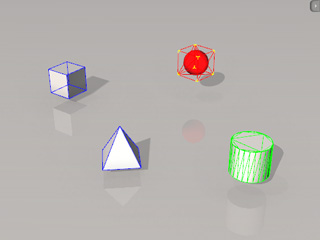
There are many ways to structure your physics object relations, you will see different methods and their corresponding applications; and also different ways to observe the relationship via color coding and user interfaces.
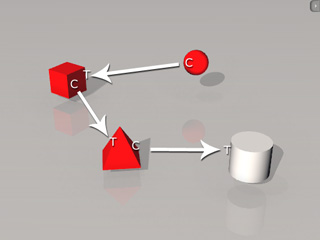
The serial-connection application means that a rigid body is constrained, while
is also a target of other rigid bodies as described in the following illustration:
This method is suitable for creating chain-like physics structures, such as chains, trains or caterpillar-like structures.
Please refer to the Creating a Series-Connected Chain section for more information.
The many-to-one application means that several rigid bodies are constrained, while
a single physics object is their mutual target as described in the following illustration:
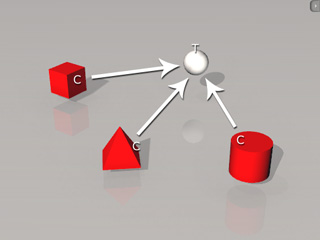
This method is suitable for creating multiple physics structures, such as insects or cars.
Please refer to the Individual Constrained Objects with Single Target section for more information.
The one-to-many application means to apply multiple constraints in a single rigid body, while targeting
many other individual physics objects as described in the following illustration:
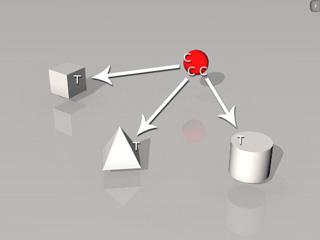
This method is suitable for creating joint physics structures for machines; or when you need to stabilize a physics structure from jittering because of the collisions between each physics object within the structure.
Please refer to the following sections for more information:
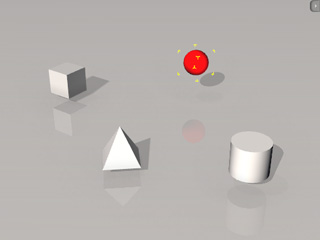
Because any one rigid body can be applied with multiple constraints, the relationships can be identified by the colors and user interfaces.
 button to
select a desired constraint type from the list.
button to
select a desired constraint type from the list.
 button and pick another physics object to make it the connecting target.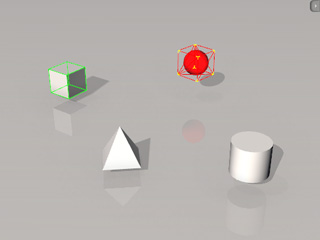
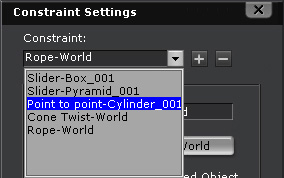
When a rigid body is applied with multiple constraints, you may need to find out all the relationships. iClone provides color identification method to find out the related targets and the directly connected target for the current rigid body that has been applied with more constraints.