| |
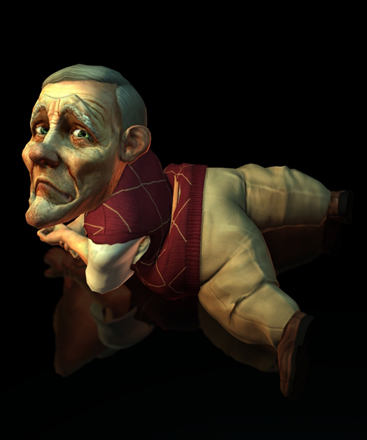
| Adjusting face and body proportions. |
| A. |
Adjusting the face |
| |
|
| A-1 |
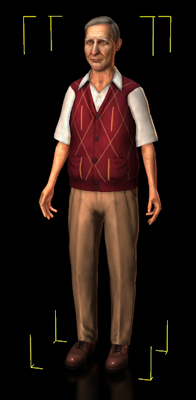
Apply a character. |
| |
|
| |
|
| A-2 |
Select "Face" under "Head". |
| |
|
| |
|
| A-3 |
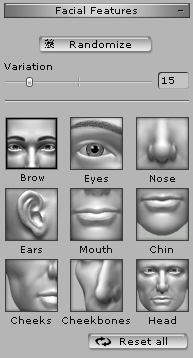
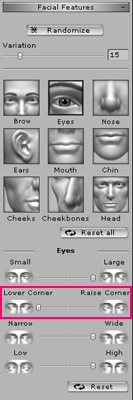
Go to "Facial Features" under the Modify window. |
| |
|
| |
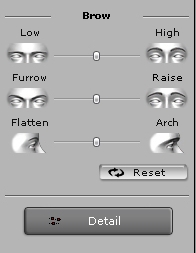
You can select the part of face you wanted to change and then adjust the value at "Brow" window to get the desired result. |
| |
|
| |
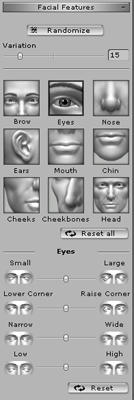
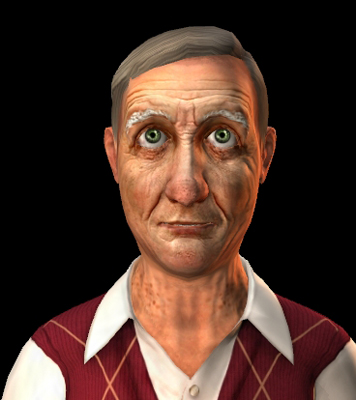
Eg. How to change a character's eyes. |
| |
|
| |
|
| A-4 |
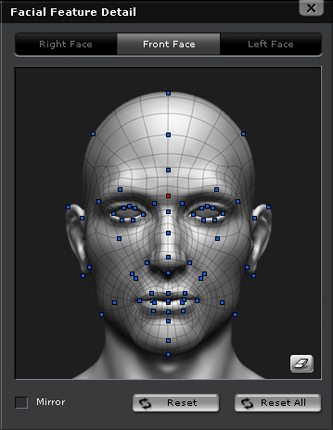
You can also go to "Facial Features" —> "Detail" to adjust the details of the face more precisely. |
| |
|
| |
|
| A-5 |
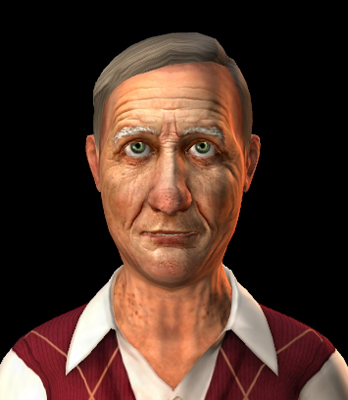
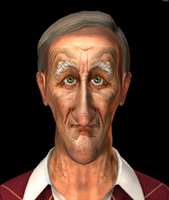
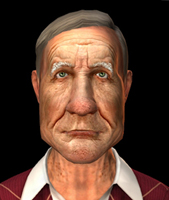
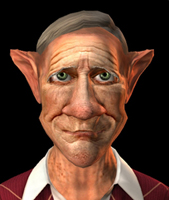
Create different faces by adjusting the values. |
| |
|
| |
|
| B. |
Adjust the body proportions. |
| |
|
| B-1 |
Apply an actor. |
| |
|
| |
|
| B-2 |
Select Actor —> "Avatar". |
| |
|
| |
|
| B-3 |
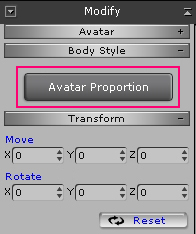
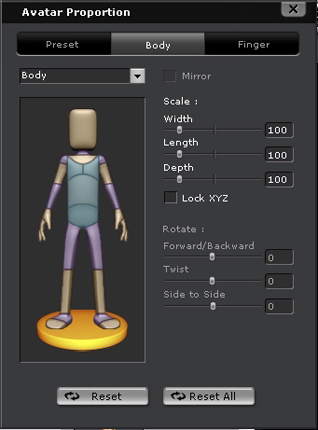
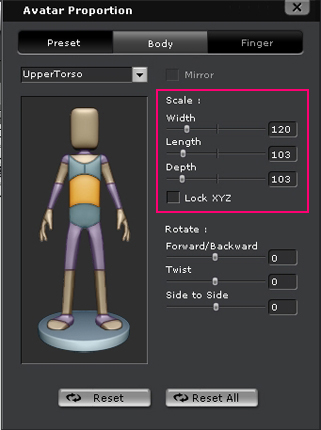
Go to "Body Style" in the Modify window and click on "Avatar Proportion" to open the window. |
| |
|
| |
Adjust the values to create lots of different body types. |
| |
|
| |
|
| B-4 |
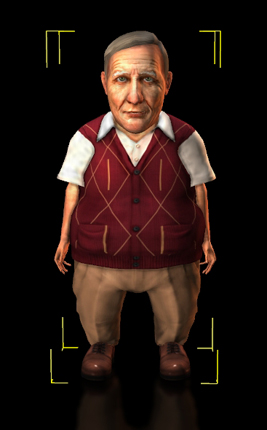
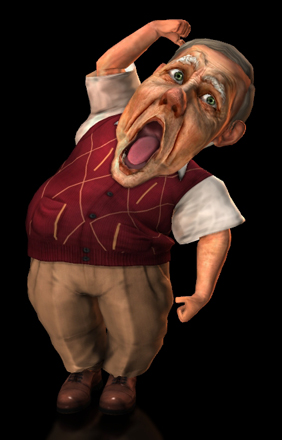
You can create new faces to go with different body types to create many great results. |
| |
|
| |
|
| For a more detailed walkthrough, please check iClone 5 Online Help: |
| How to Change the Proportion of Each Sub Node of an Actor |
| |
|