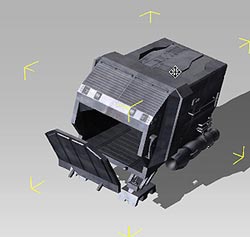
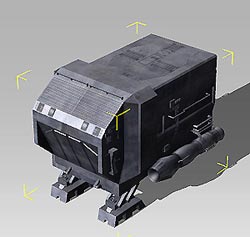
|
How it works: |
| |
| A. |
How to Use iProps? |
| B. |
How to Use Rotate Tool?
|
| C. |
How to Use Move System? |
|
| |
|
| |
For more details, please follow the step-by-step instructions below. |
| |
|
| A. How to Use iProps? |
| |
| A-1. |
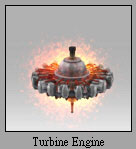
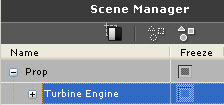
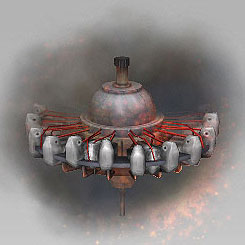
Apply any iProp (eg. Turbine Engine) and select the iProp in the Scene Manager. |
| |
|
|
A-2. |
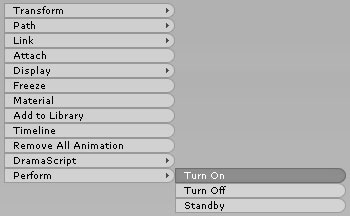
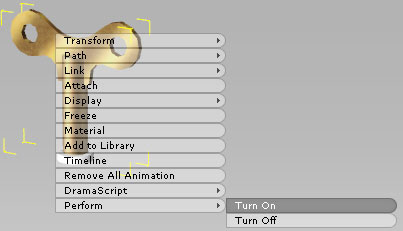
Right-click on the iProp and select Perform/Turn On. If there is no animation, please press the Space bar to generate animation. |
| |
|
|
A-3. |
When you want to stop the iProp, right-click on the iProps and select Perform/Turn Off.
iProp is now stopped gradually. You have finished a smooth animation. |
| |
(If you need to stop this operating right now, you can just press Space to break down after A-2.) |
| |
Tip. If there is no animation after Turn on/off, please press the Space bar to generate animation. |
|
| B. How to Use Rotate Tool? |
| |
| |
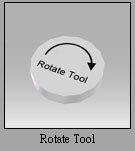
Rotate Tool is provide to help users to produce rotatable iProps conveniently. |
|
B-1. |
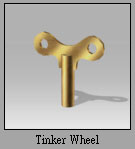
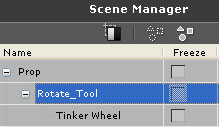
Apply an iProp that you want it to rotate. (eg. Tinker Wheel.iProp) and the Rotate Tool. |
| |
|
|
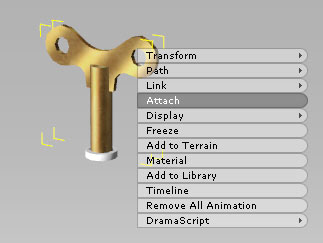
B-2. |
Right-click on Tinker Wheel and select Attach. |
| |
 |
|
B-3. |
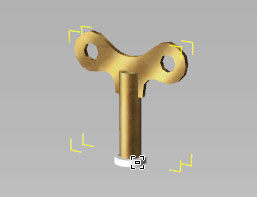
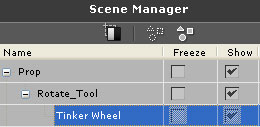
Pick Rotate Tool and Rotate Tool is now the parent to Tinker Wheel. |
| |
|
|
B-4. |
Select Rotate Tool in Scene Manager, and select Turn On in the Right click Menu.
Refer to ''A. How to Use iProps?'' to operate the Rotate Tool. |
| |
|
| |
Tip. When the film needs to be exported, please confirm Set as Dummy is checked to avoid Rotate Tool being rendered. |
|
| C. How to Use Move System |
| |
| |
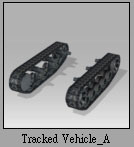
Tracked Vehicles are iProps that have embedded animations and AML. Users can use hotkeys to make the Tracked Vehicles move like playing video games. |
|
C-1. |
Apply Tracked Vehicle_A. |
| |
 |
|
C-2. |
You can use Editor or Director Mode. |
| |
| In Editor Mode: |
| a. |
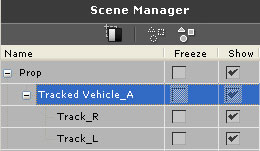
Select Tracked Vehicle_A in Scene Manager and right click on it. |
| |
 |
| b. |
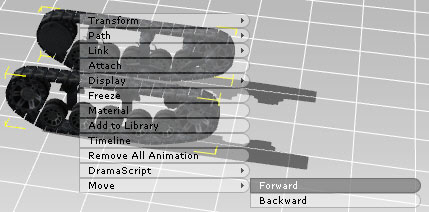
Select Forward in the Right Click Menu. |
| |
 |
| c. |
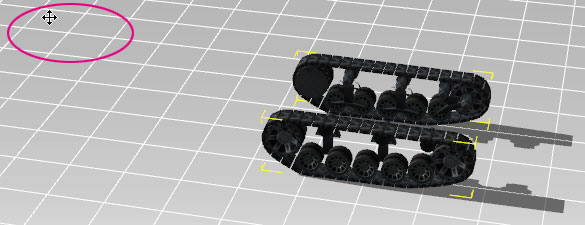
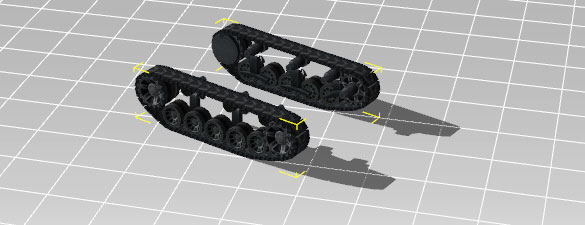
Click on the location that you want the Tracked Vehicle to go. Tracked Vehicle is now moving! |
| |
|
| In Director Mode: |
| a. |
Select Tracked Vehicle_A in Scene Manager and Pick Mode Switch. |
| |
 |
| b. |
When you are ready to record, press Record. |
| |
 |
| c. |
You can used hotkeys as below to control Tracked Vehicle moving. |
| |
| W - |
Move forward |
| S - |
Move backward |
| A - |
Turn left when moving forward/backward. |
| D - |
Turn right when moving forward/backward. |
|
Important Reminder: |
| a. |
If you encounter some strange situation on Tracked Vehicles in Editor Mode, please follow the instructions below. |
| |
|
| |
Please make sure that the first animations is not Backward in Timeline,
so this will not occur. |
| |
 |
| |
|
| b. |
If there is a strange animation after Reset or Remove All Animation, please follow the instructions below. |
| |
|
| |
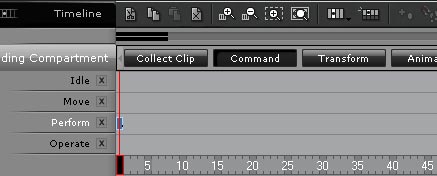
Please delete the motion clip in Timeline/Command /Perform Channel, and it will be fine. |
| |
 |
| |
|
|
|