| |
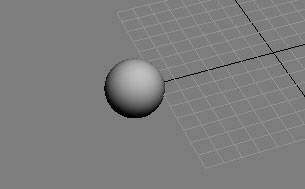
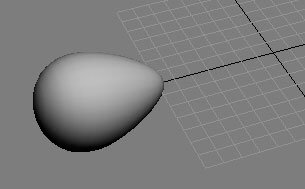
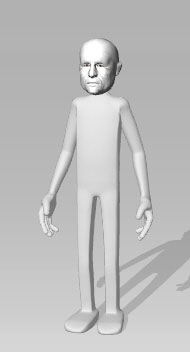
| You may sculpt a unique head by using 3d software. |
| |
| How it works: |
| |
| A |
Export the .obj file in 3DXchange 4. |
| B |
Sculpt & re-shape the head in 3d software. |
| C |
Bring back to iClone. |
|
| |
|
| |
For more details, please follow the step-by-step instructions below. |
| |
|
| |
A Export the .obj file in 3DXchange 4. |
|
| |
|
| |
You need 3DXchange 4 to export the .obj file.
For more information about 3DXchange 4, please click here. |
| |
|
| A-1 |
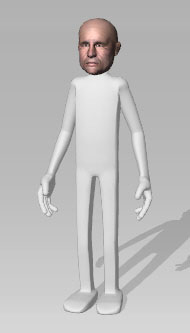
Load the Character_Round in 3DXchange 4.
|
| |
 |
| |
|
| A-2 |
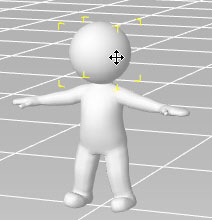
Select “Face” in the Viewport. |
| |
 |
| |
| |
|
|
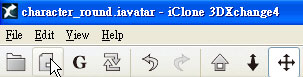
Click Export Mesh in Modify/Replace Mesh, and save as .obj file. |
| |
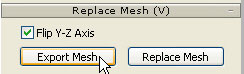 |
| |
Sculpt & re-shape the head in 3d software. |
| |
B Sculpt & re-shape the head in 3d software. |
|
| |
|
| B-1 |
Import the .obj file in any 3D software and adjust the Mesh. |
| |
|
| |
When you finish adjusting, save as a new .obj file. |
| |
|
| B-2 |
Select “Face” in the Viewport, and click Replace Mesh in Modify/Replace Mesh. |
| |
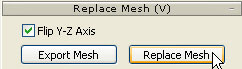 |
| |
|
| B-3 |
Choose the updated .obj file that you just modified. |
| |
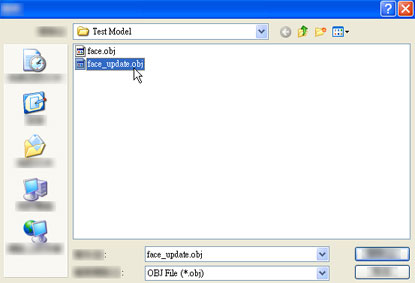 |
| |
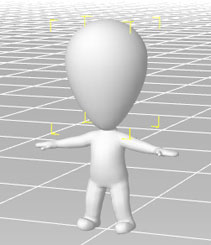
| The face has been updated! |
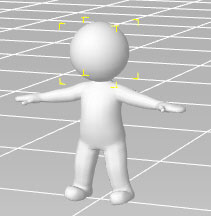 |
 |
 |
|
| |
|
| |
C Bring it back to iClone. |
|
| |
|
| C-1 |
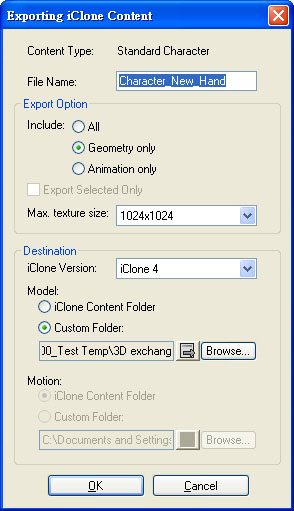
Export the Character in 3DXchange 4 as below. |
| |
|
| |
|
| C-2 |
Import the character in iClone/Actor/Avatar/Modify. |
| |
 |
| |
|
| C-3 |
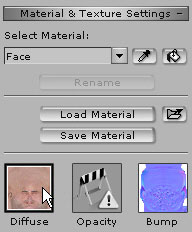
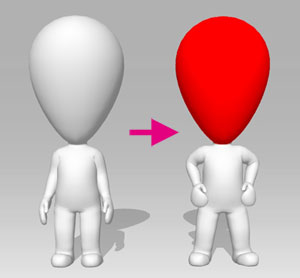
Adjust the color in Actor/Skin/Modify/Material & Texture Settings. |
| |
 |
| |
|
| C-4 |
You may also attach additional elements to the character. |
| |
 |
| |
|