| |
| There are two ways to load 3D characters into Photoshop for further character design. |
| |
| |
| A |
Load 3D object into Photoshop as a layer. |
| B |
Export from iClone with Alpha channel. |
|
| |
|
| |
For more details, please follow the step-by-step instructions below. |
| |
|
| |
A Load 3D object into Photoshop as a layer. |
|
| |
|
| |
You need 3DXchange 4 to export the .obj file.
For more information about 3DXchange 4, please click here. |
| |
|
| A-1 |
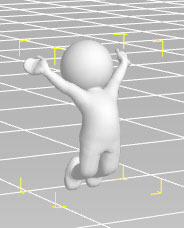
Load the Character_Round in 3DXchange 4. |
| |
 |
| Export .OBJ |
|
|
| |
|
| A-2 |
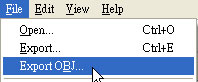
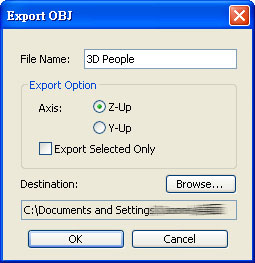
Export .OBJ |
| |
|
| |
|
|
Prepare the background image that you need as below.
|
| |
 |
| |
|
|
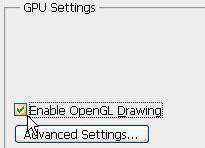
Make sure that you Enable the OpenGL Drawing option in the Preferences/Performance/GPU Settings. |
| |
|
| |
|
|
Import the .obj file in '3D/New Layer from 3D File'.
|
| |
 |
| |
|
|
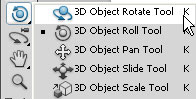
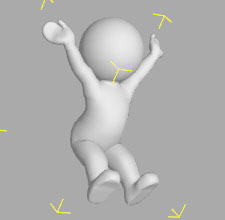
Use the 3D Object Tool to edit the position, size and angle of the character in accordance to your preference. |
| |
|
| |
|
|
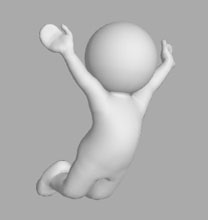
Your design is complete! |
| |
|
| |
|
| |
B Export from iClone with Alpha channel. |
|
| |
|
| B-1 |
Load Character_Round in iClone. |
| |
 |
| |
|
| B-2 |
Click on every white body part. |
| |
 |
| |
|
| B-3 |
Edit the pose. Please take a look at How to Adjust the Poses? |
| |
|
| |
|
| B-4 |
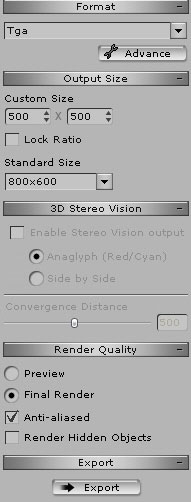
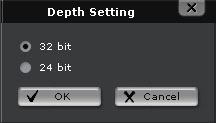
Export the image in Export/Image. Adjust the Export and Depth settings.
Tip: If you set the Depth setting to 32 bit then the exported image will come with an Alpha Channel. |
| |
|
| |
|
| B-5 |
Combine the images in any 2D editing software . |
| |
|
| |
Click here to know more information about 3DXchange 4 & Photoshop. |