Spring (New for 5.1)
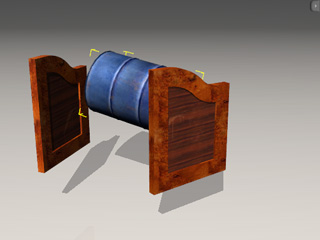
The Spring constraint causes the rigid body to bounce along one or more axes, or even bounce along the X axis.
It is suitable for creating a shock for a tire, a mechanical scale, or even a swinging door.
Move
-
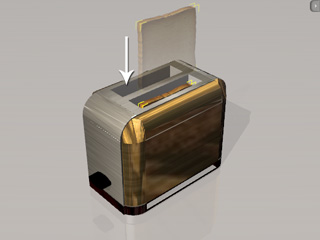
Apply a prop (in this case, a piece of toast). Transform it to a desired position, size and angle.
-
Set the prop as Dynamic.
-
Because the Dynamic rigid body will fall infinitely by default, you need to constrain it.
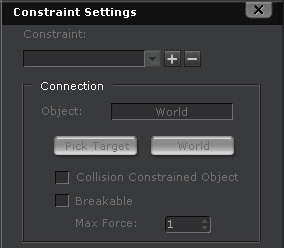
In the Object Physics Settings panel, click the
 button to open the
Constraint Settings panel (Shortcut: Shift + F10).
button to open the
Constraint Settings panel (Shortcut: Shift + F10).
-
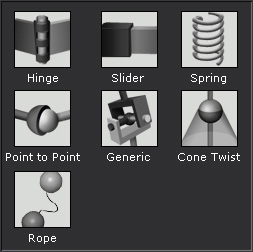
Click the
 button
and select Spring constraint type from the list.
button
and select Spring constraint type from the list.
-
In the Connection section, you may pin the toast to
the world by clicking the World
 button.
Please refer to the Setting Connection Relationship section for more information.
button.
Please refer to the Setting Connection Relationship section for more information.
-
Turn on the Gizmo mode (Shortcut: Ctrl + Q) and switch to the Local Move (toggle by W key) to
find out the axis for correct direction.
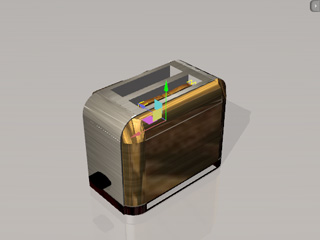
The green arrow indicates the Y axis (Red = X, Green = Y, Blue = Z).
-
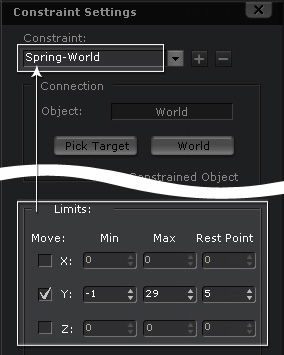
In the Limit section, check the Y
box and define the bouncing range for the spring effect. Make sure that the Min < Max
or the spring effects will be incorrect.
|
-
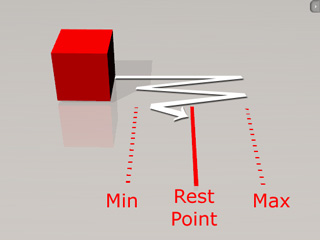
Min, Max: The relative distance from the current pivot position.
-
Rest Point: The relative position of the rigid body when the spring effect stops. It is highly recommended that you
use a value between the Min and Max otherwise the spring effect will fail when you begin your simulation.
|
-
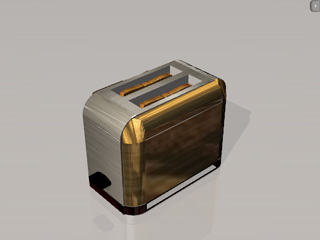
Duplicate the toast (Shortcut: Ctrl + drag with Left Mouse Button). The physics settings are also duplicated, including the constraint
settings.
-
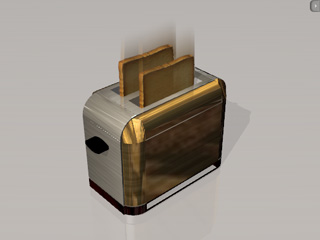
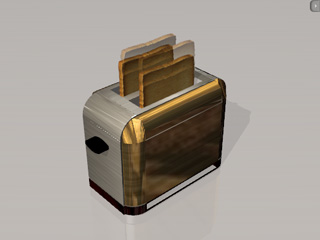
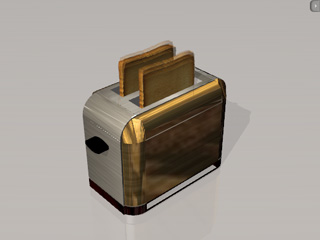
Play to simulate the spring effect. You will see the toasts are bouncing
up and down.
Setting Spring Property
In the above example, you may find that the spring effect keeps going, which seems to never decrease and never stop. In the
Property section of the same panel,
you are able to set the Spring and Damping values to define the
strength of the spring effect and
how hard the resistance will be to slow down the spring effect.
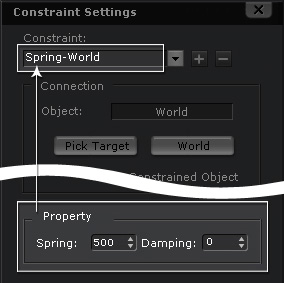
In the last example, the Spring is set to 500, which causes the strong bouncing behavior. If you
decrease the value to 50, then the spring strength is also weaken and more gentle.
If you want the decrease the speed for each back and forth, then you can increase the Damping value to increase the
air resistance for the movement.
|
Note:
|
|
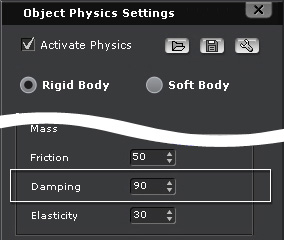
If sometimes the spring effect does not seem to stop, it is because the Spring value is too high, and the
Damping value is not enough to ease the bouncing in a short time. In this case, you can open the Object Physics Settings panel, and increase the Damping value for the rigid body.
With these two damping values set higher (one for the constraint and the other for the rigid body), the spring effect will stop sooner.
|
Rotate
In addition to the Move spring effect, you are able to create a spring effect that rotates by the X axis.
-
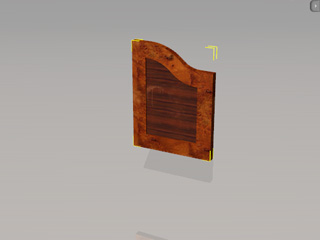
Apply a board. Set it as Dynamic rigid body.
-
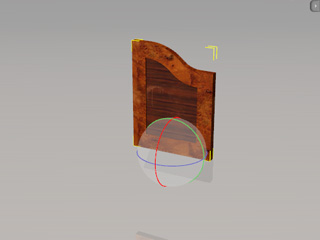
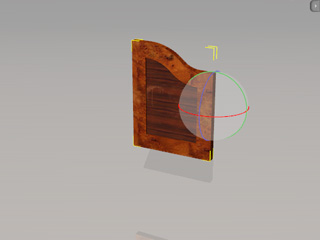
Turn on the Gizmo mode (Shortcut: Ctrl + Q) and switch to the Local Rotate (press the E key to toggle) tool to
observe the direction of the X axis.
Modify the pivot position and direction if needed.
( Red = X, Green = Y, Blue = Z)
|
|
|
Before modification.
|
After modification.
|
-
Apply the Spring constraint to the rigid body.
-
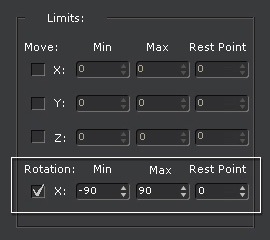
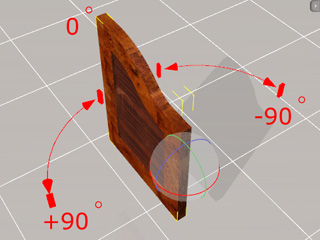
In the Rotation section of the Constraint Settings panel, set the Min, Max and Rest Point values
to define the bouncing range.
-
Set the Spring, Constraint Damping and Rigid Body Damping as described above.
-
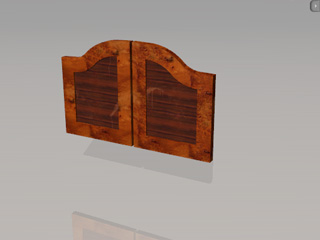
Duplicate the board (Shortcut: Ctrl + drag with Right Mouse Button). The physics settings are also duplicated, including the constraint
settings.
-
Prepare a kinematic object to pass through it. Simulate the result.
|
Note:
|
|
By offsetting the rotating range and the angle of the rest point from the
initial angle of the spring-constrained object,
you may also
produce initial force.
|