CREATE TRANSPARENT VIDEOS
WITH


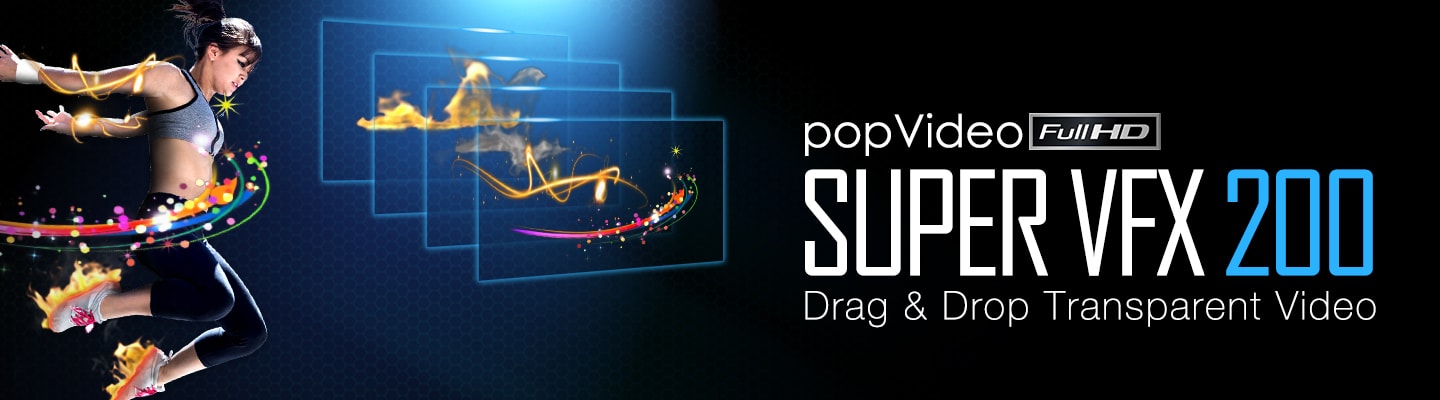
popVideo delivers a one-click background screen removal feature with a wide range of chroma key color options to instantly turn videos and image sequence into crisp, transparent videos. Deal with various imperfect shooting conditions thanks to the powerful chroma key Timeline editor and a comprehensive set of Mask tools. Supports a proprietary synchronous popVideo format compatible with Reallusion animation software for real-time 3D/2D video compositing. Work with industry standard formats for practical export and use with 3rd party video editing applications.
Chroma Key
Timeline Editor
Convert Alpha
Image or Video
Adjust Speed &
Resolution
Real-time
3D Compositing
ProRes MOV
4K Output

Build up a library of transparent videos for use as in montages, video remixes, or collages that can be quickly used to create catchy, professional, commercial-quality videos.
Immerse real actors in the created 3D worlds while adding stunning visual effects, and real-time 3D composited assets for filmmaking, or movie previz.
Set up showrooms, news studios, or video walls for effective announcements displaying products, actors, or illustrated concepts in a professional way.
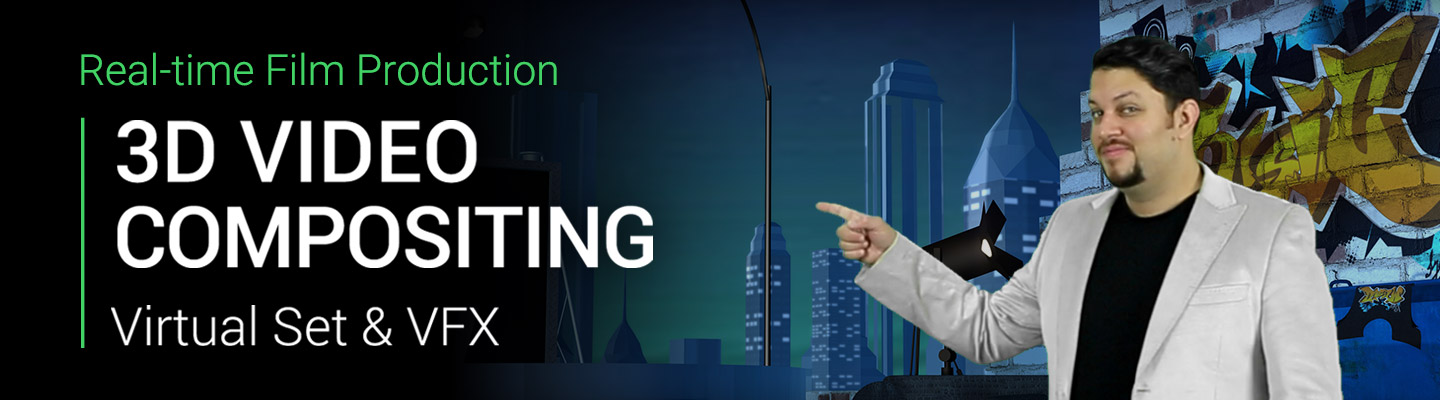

Get the free trial to experience the full features of popVideo.

Not sure how to get started? Then come and learn straight with the pros! Free video tutorials and manuals are available online.

Reallusion is here to help you! Feel free to contact us and we'll get back to you as soon as we can.