|
|
|
|
| You can use Scenes as below. |
| A |
Move, Rotate and Scale. |
| B |
Move Camera to see the visual result. |
| C |
Adjust the Z depth of the props. |
|
|
|
|
| A. Move, Rotate and Scale. |
| |
|
| A-1 |
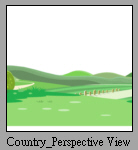
Apply any Scene in Scene/Scene.(eg. Country_Perspective View) |
| |
|
| |
|
| A-2 |
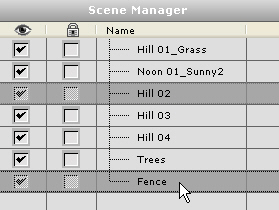
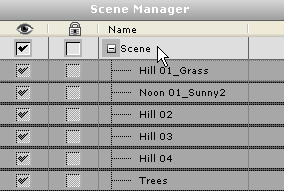
Click Scene in Scene Manager, you can select all scene props at once. |
| |
 |
| |
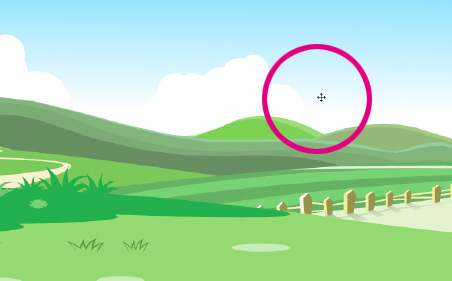
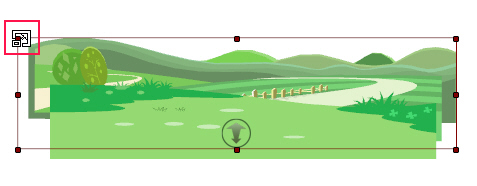
You can scale all scene props at once, when the cursor is on the border of the active objects. |
| |
 |
| |
Tip. You can adjust the scene prop via Transform Tool or drag it in Viewport. |
| |
 |
|
|
|
| B. Move Camera to test the visual result. |
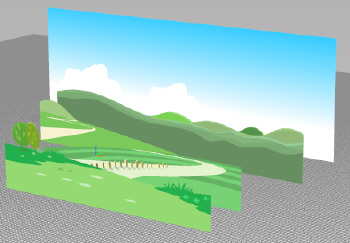
| Crazy Talk Animator provide the space that has depth, and you can see the spaciousness through the moving camera. |
| |
| B-1 |
Click Move button, and drag to move camera to left or right. |
| |
|
| |
|
| B-2 |
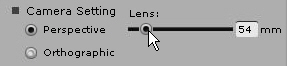
You can adjust the Lens value to produce the different perspective of visual effects. |
| |
|
|
|
| C. Adjust the Z depth of the props. |
| In addition to adjust Lens value, you can also adjust the scene prop position individually to produce the different perspective of visual effects. |
| |
| C-1 |
Click 3D View button to enter 3D Mode. |
| |
|
| |
|
| C-2 |
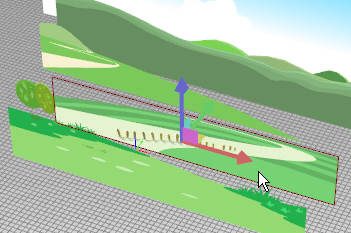
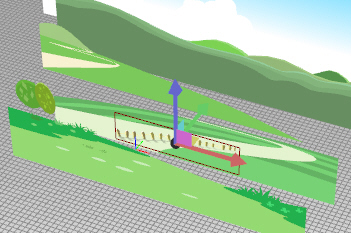
You can drag the Gizmo of Scene Prop to a new position. |
| |
 |
| |
Tip. You can also hold down the Ctrl key, and click more props to move them together in Viewport or Scene Manager. |
| |
|
| |
|
| C-3 |
When you finish the adjustment, please click 3D View button to exit 3D mode. |
| |
|
|
|
| |