Baking the Simulated Animations
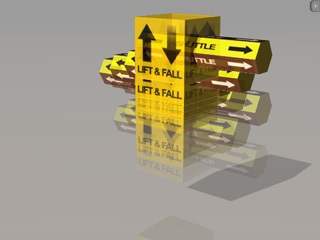
By using the dummies from L1 Force or L2 Structure, you can construct custom structures.
After completing animation simulations for the custom structures, you may want to bake the animation
into the structure, and then use the right-click menu to have the structure to perform those same animations later.
In order to achieve this goal, you need to follow the steps below:
Construct a Structure and Simulate Animations
In this section, a custom structure is built from the dummies in the L1 Force (or L2 Structure).
-
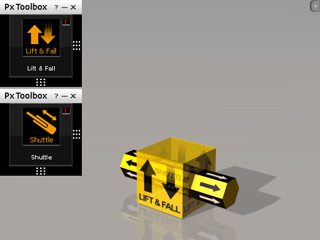
Apply the Lift and Fall and Shuttle dummies. Transform the Lift and Fall dummy to
the world root (0, 0, 0) and the Shuttle to the center of it.
|
Note:
|
|
Please note that when you want to proceed with the "Baking" process,
you need to construct the custom structure at the world root (0, 0, 0) so that
the animations result can be correctly baked.
|
-
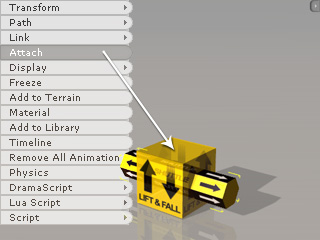
Right click the Shuttle and attach it to the Lift and Fall dummy. This step must be done
before you simulate any animation.
-
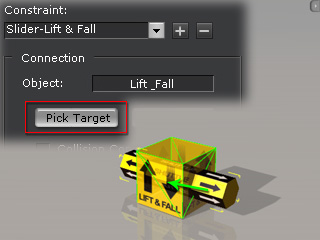
Make sure the Shuttle is selected and open the Constraint panel (Shortcut: Shift + F10).
-
Pick the Lift and Fall as its target.
-
Utilize the control panels from the two dummies to simulate animations of them.
Turning Custom Structure into Common Prop
You may simulate as many times as you want. After you obtain the ideal animations, you may then follow the steps below
to bake the animation into the structure.
-
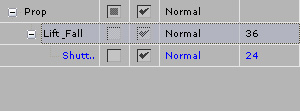
Select the root node of the structure in the Scene Manager (in this case, the Lift_Fall).
-
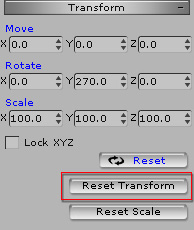
Go to the Set > Prop > Modify panel. In the Transform section, click
the Reset Transform button.
-
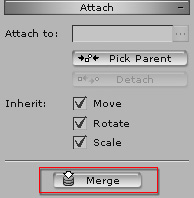
In the Attach section of the Modify panel, click the Merge button.
-
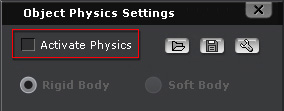
Open the Object Physics Settings panel (Shortcut: Shift + F9), deactivate the Active Physics box.
This step turns the structure into a common prop.
Baking Animation to the Structure by Collect Clip Feature
After the physics structure is turned into an ordinary prop, you may then use the Collect Clip feature in iClone
to bake the animation into the custom structure.
-
Select the structure. Open the Timeline (Shortcut: F3).
-
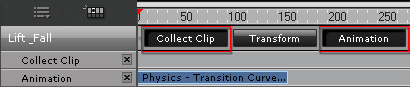
Open the Collect Clip and the Animation tracks of the new structure.
-
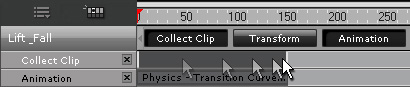
Drag on the Collect Clip track to make a range to decide the animation you want to bake into the structure.
-
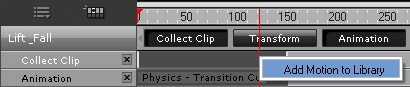
Right click within the range and select Add Motion to Library.
-
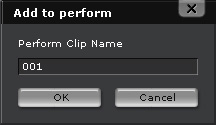
The Add to Perform panel will display. Type in the name of the animation and then click OK to Bake the animation into the structure.
-
Right click on the custom structure and then select the Remove All Animations command from the
right-click menu.
-
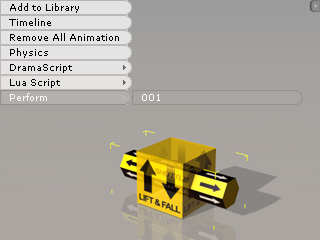
You may optionally move the structure elsewhere. Right click on it and select the Perform > (Name given in step 5) command
in the right-click menu to recall the animation at any time.