 or
or  ),
Rotate
),
Rotate  , or Scale
  tool.
tool.
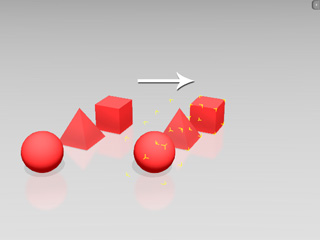
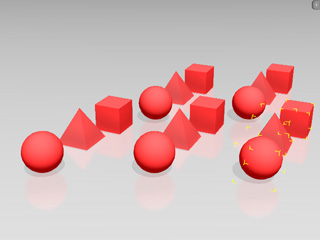
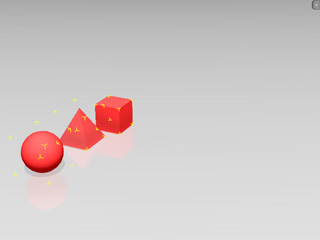
In order to duplicate props in iClone, you can combine the use of transform tools and the Ctrl key. However, if you need to duplicate a lot of similar props, then you can use the Multi Duplicate feature.
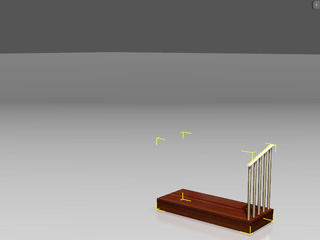
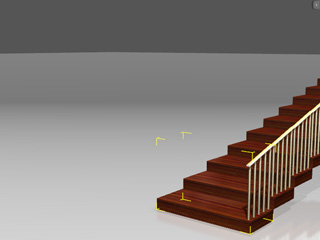
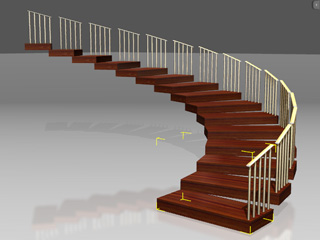
You are allowed to quickly duplicate objects by simply entering a number. Once duplicated, you may optionally transform, rotate or scale your objects at the same time just as if you wish to create a set stairs.
or ),
Rotate , or Scale tool.
With the Multi-Duplicate panel, you do not need to use the Ctrl key to copy and paste many times. Adjust the parameters in the panel and you may then produce many of the same props at one time. Please note that this feature can only be applied to single props, not multiple props.
 button
(Shortcut: Shift + D) to show the panel.
button
(Shortcut: Shift + D) to show the panel.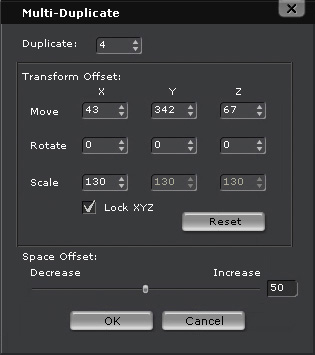
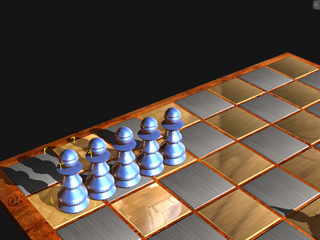
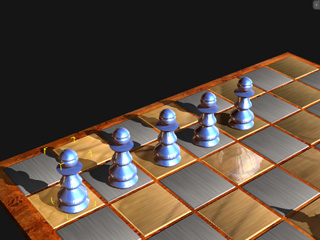
|
|
Move X is increased. |
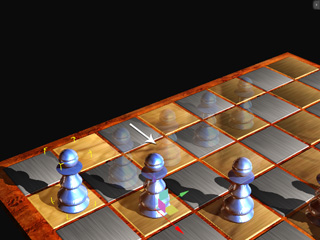
|
|
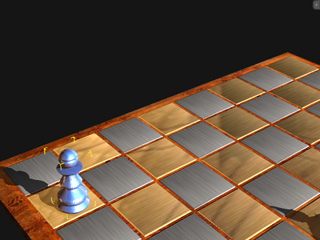
Each pawn offsets the same distance from the previous one. |
 button
(Shortcut: Shift + D) to show the panel.
button
(Shortcut: Shift + D) to show the panel.
|
|
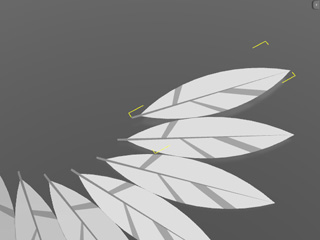
Each step rotates the same angle from the previous one. |
In the previous section you learned that the Multi-Duplicate feature supports only a single prop; however, when you want to create a prop array, such as a brick wall, then you may still use the Multi-Duplicate feature with the attaching method.
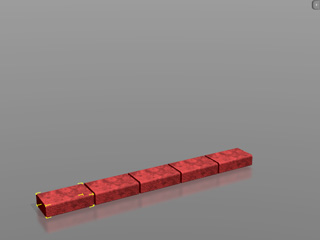
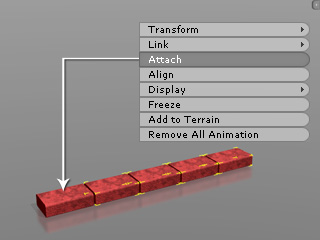
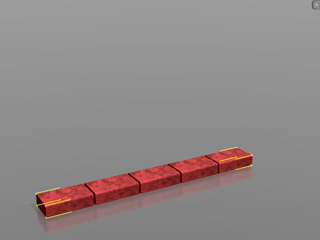
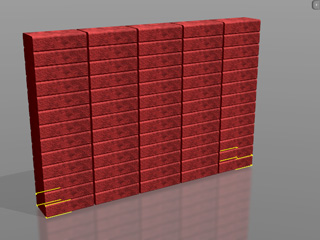
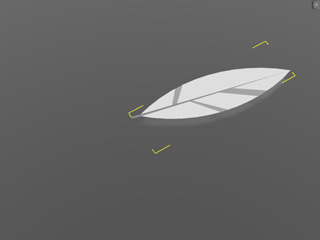
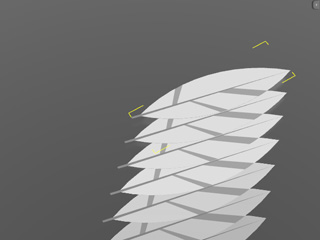
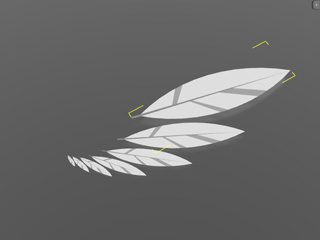
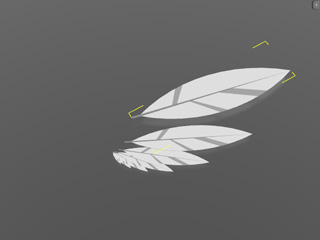
Basically, the duplicate distance, angle or size (also called Space Offset) between two adjacent duplicated props is a constant number specified by you. However, the space offset can be progressively increased or decreased. This can duplicate your prop with more geometrical graphics.
|
|
The duplicated props are scaled down. |
|
|
Space Offset is decreased. |
|
Note: |
|