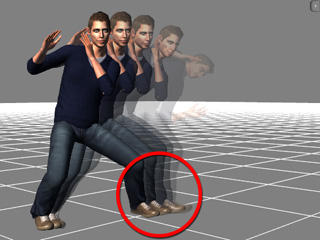
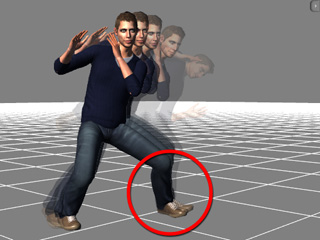
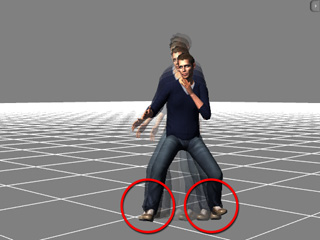
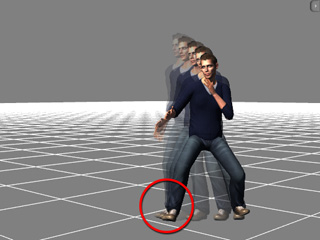
Using Align Features to Remove Sliding (New for 5)
The sliding issues happens from time to time when you assign motions to a character by either applying motions from the Template library (*.iMotion), puppeteering
motions by the Motion Puppet, or even capturing motions with the Device Mocap feature. Sometimes, the transition between two
motion clips can also have this issue.
IClone provides two features, Align and Align Whole Clip, to help you solving this problem.
Body Parts Frequently Generate Sliding
The sliding issues that happens often after you apply motions to a character are:
-
Foot Sliding.
-
Pivot Sliding.
-
Hand Sliding.
Aligning the Whole Clip
-
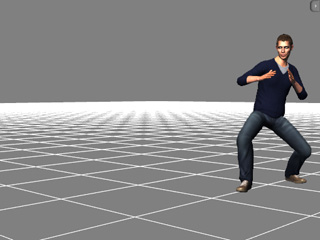
Apply any one motion template (kicking in this example) from the Animation >> Motion template to a character so that the character leave its original
position. You may also optionally right-click on the character and have the character move away with the Move command.
-
You may then see the left foot of the character slides after it finishes kicking and the right foot steps back to the ground.
-
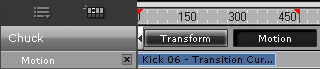
Open Timeline (Shortcut: F3). Click the Motion button of the character to show its motion track.
You will see that the motion clip is stored inside the track.
-
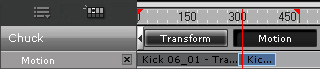
Right-click on the clip where the foot-sliding starts, select the Break to split the motion into two clips. The later clip is the one with
foot-sliding issue.
-
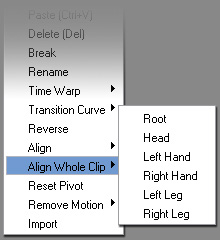
Right-click anywhere on the later clip, select the Align Whole Clip and pick one of the
commands from its sub-menu. In this case, the Left Foot; which aligns
the entire left foot positions in the clip.
-
The positions of the foot will be aligned based on the start position of the foot.
Aligning to the Previous Clip
In addition to align the whole clip, you are able to align a body part in a clip to the final pose of the previous clip. This act avoid a sliding
issue before the later motion starts.
-
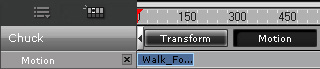
Have the character to move to a desired position by right-clicking on it and using the Move command. A moving clip will
be added into the Motion track.
-
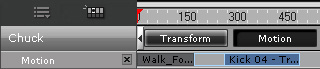
Go to a latter time frame after the walking finishes and apply any one motion template (kicking in this example) from the Animation >>
Motion template to a character.
-
You will see a sliding transition for both feet between these two clips.
-
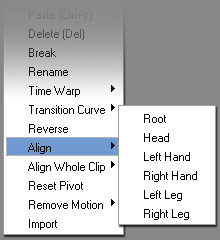
Right-click anywhere on the later clip, select the Align and pick one of the commands
from its sub-menu. In this case, the Right Leg.
-
The right leg position in the entire later clip is aligned to the
ending pose of the previous clip in order to remove the sliding issue between these two clips.