Using the Mouse Cursor in the Motion Key Editor and Puppet Editor
You may use the Motion Key Editor and Puppet Editor to produce a character's facial expressions and body motions. However, when these
panels show, there are specific reaction areas for your mouse movements to take effect. The mouse movements can be categorize into two aspects; Cross Movements and
Circular Movements
Cross Movements - Face Key Editor and Face Puppeteering Panel
Face Key Editor
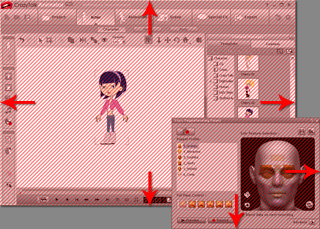
The reaction area for the Face Key Editor is described below. You must drag across
from the inside to the outside of the area in order to control the
facial features:

Face Puppeteering Panel
When you Preview or Record facial expressions, the mouse cursor will jump to the center of
the main program. The reaction area is the whole program.
If you move the mouse cursor outside of the reaction area, then the character pauses.
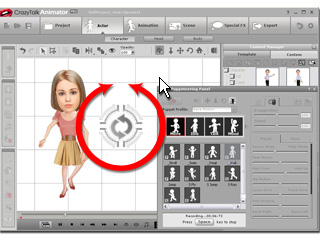
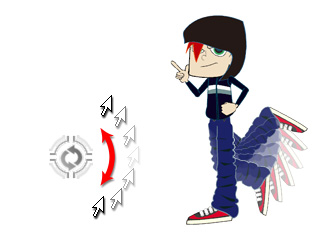
When you use the Body Puppeteering Panel to preview or record body motions, then you use a circular mouse movement to control.
Please notice:
-
You must drag a circular movement around the mark inside the working area.
-
The motion speed is determined by how fast you draw the circle.
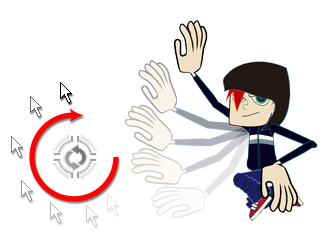
Clockwise Direction
If you drag the mouse in clockwise direction, then the character motion performs forward.
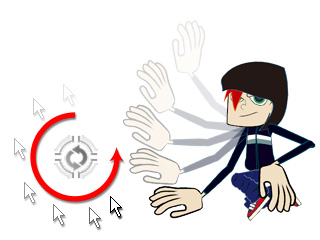
Counterclockwise Direction
If you drag the mouse in counterclockwise direction, then the character motion performs backwards.
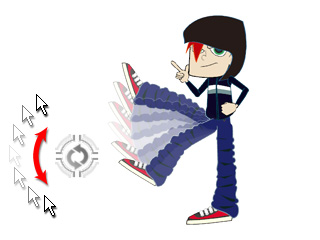
Partial Circular Movements
You do not need to always make a full circle around the mark to produce a complete motion. You can move back and forth in an arc movement to puppet the
character in a partial movement of the preset motion.