Modifying the Textures of the Sprite Elements
If you want to change the texture of any element in a sprite, then you
need to enter the Composer Mode.
In the Composer Mode, you may use the Color
Editor tool to perform basic modifications to the elements, or you may use an
external image editor for advanced modifications.
The Color Editor may help you with editing Vector-based
and Image-based elements. But take note that the External Image Editor
is more suitable for editing Image-based elements.
If you want to modify the mask of an element, then please refer to the
Editing the Background Mask section for more information.
Editing Vector-based and Image-based Elements
-
Basic Usage - Editing Single Sprite
-
Pick one of the sprites in the Composer Mode.
-
Click the
 Color Editor button.

-
Drag the sliders of the Color Editor panel to adjust the basic color of the texture.

|
Note:
|
-
All elements inside this sprite will be affected.
|
Advanced Usage - Affecting All Sprite
The Color Editor provides features for you to modify the character's skin, hair, clothes, and others
as a group. This way you do not need
to modify them individually.
-
Select a character, and then enter the Composer Mode by clicking the
 Character Composer
button.
Character Composer
button.
-
Select the face and then click the Color Editor button.

-
Select Skin in the Choose Group drop-down list.

-
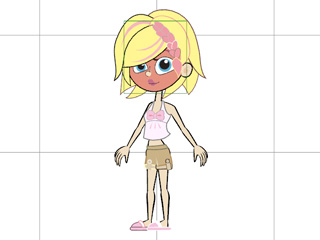
Modify the Brightness, Contrast, Hue and Saturation value. You can see that only the
face skin is modified.
-
If you activate the Affect All box, then the character's entire skin color will be modified.

-
You may use this method to change the hair, the jacket, pants or even shoes
as individual items.

Editing Image-based Elements
If you want to use an external image editor to modify an image-based element, then follow the steps below:
-
Pick a character in the Stage Mode. Click the Character Composer button to switch to the composer mode.

-
Select one of the body parts and then click the Sprite Editor button.

-
Pick the element in the list for editing.

-
Click the
 Launch button.
-
CrazyTalk Animator will then launch your specified image editor
(e.g. Photoshop) with the texture opened in it ready for advanced modifications.

-
Edit the image and save. The data will then be automatically transferred into CrazyTalk Animator.


-
Click the Back to Stage button to update the character in the Stage Mode.

|
Note:
|
-
Only image-based elements may be modified
with an external image editor. If the element is a video
or SWF-based, then the Launch button will be disabled.
|