| |
|
|
| |
How to combine the skirt segments? |
|
| |
|
|
| |
|
|
| |
| |
A. |
Choose the segment that you want and set up axis. |
| |
B. |
Decide the quantity of segment. Copy and then rotate them. |
| |
C. |
Group the segments and make them become a single Prop. |
| For more details, please follow the step-by-step instructions below. |
|
|
| |
| |
A.Choose the segment that you want and set up axis. |
|
|
| |
| A-1 |
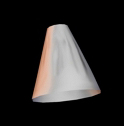
Apply any segment. |
| |
 |
| A-2 |
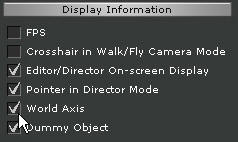
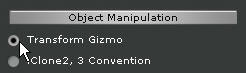
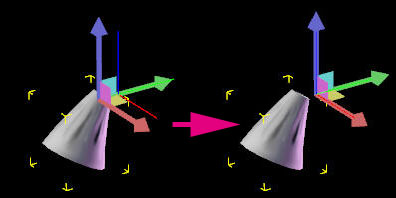
Choose any segment from the Scene Manager. Make sure that Preference/Display Information/World Axis and
Preference/Object Manipulation/Transform Gizmo are checked. |
| |
|
|
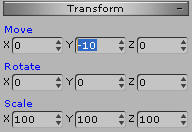
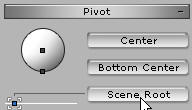
Move the segment to the appropriate position and execute Pivot/Scene Root. |
| |
|
|
|
| |
| |
B.Decide the quantity of segment. Copy and then rotate them. |
|
|
| |
| B-1 |
Calculate the required angle for each segment based on the quantity of the segment (Ex. 12 segments, 360 / 12 = 30). |
| |
|
| B-2 |
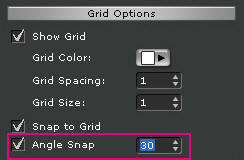
Make sure that Preference/Grid Options/Angle Snap is checked, and fill in the appropriate angle (Ex.30 degrees). |
| |
|
|
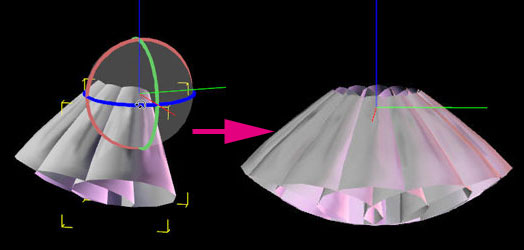
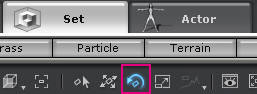
Hold down the Ctrl key, and then rotate the segment. Upon the release of the Mouse key, the segment will be duplicated. Keep doing this until the skirt is complete. |
| |
|
|
|
| |
| |
C.Group the segments and make them become a single prop. |
|
|
| |
| C-1 |
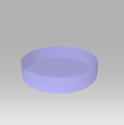
Apply Dummy.iProp. |
| |
 |
| C-2 |
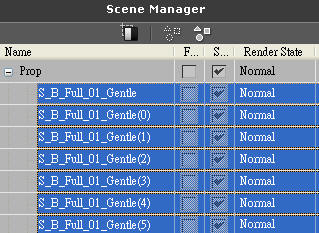
Choose all the segments from the Scene Manager. |
| |
 |
|
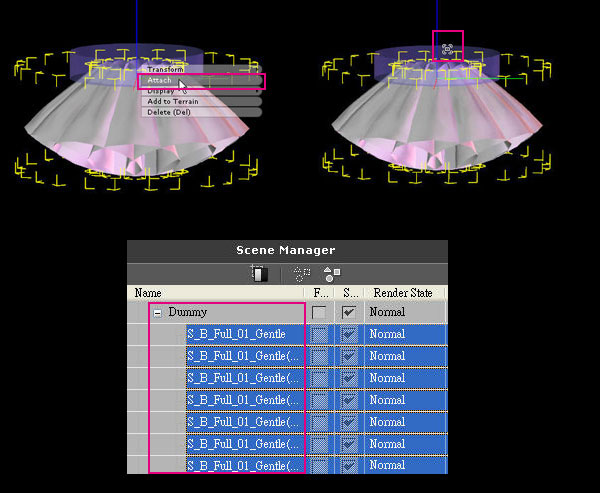
Right click to execute Attach and click on the Dummy to attach all the segments to the Dummy. |
| |
 |
| C-4 |
You can operate on the Dummy to move, scale, rotate, and save the whole skirt.
(This Pack also provides skirt templates of composed segments). |
| |
|
|
|