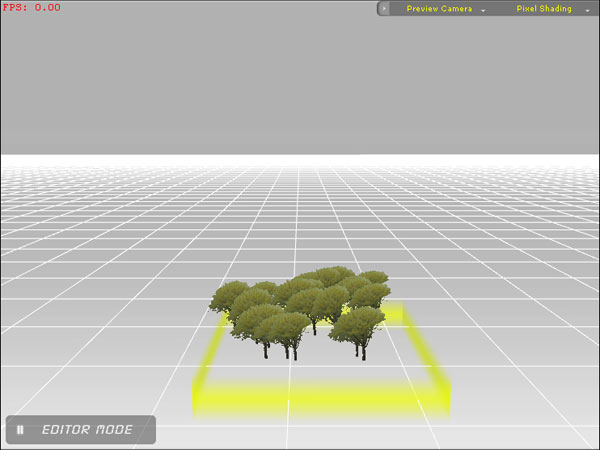
|
| |
A. Convert the material files into texture files |
| |
B. Replace the grass texture |
| |
C. Click and create forest using iClone
|
|
For more details, please follow the step-by-step instructions below.
|
| |
| A. Convert the material files into texture files |
|
1. Click the Set Tab |
| |
 |
| |
2. Click on template to load a 3D Surface into the viewer
|
| |
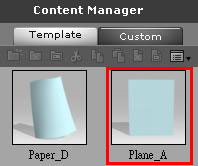 |
| |
3. Click Load Material to load material from your material library |
| |
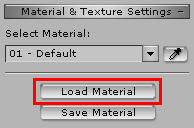 |
| |
4. Select the Diffuse channel and click the Save button to save the material diffuse texture
|
| |
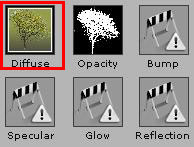 |
 |
| |
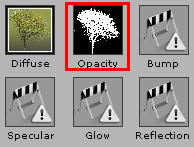
5. Select the Opacity Channel and repeat the last step
|
| |
 |
|
| |
| B. Replace the grass texture |
|
1. Click the Grass Tab |
| |
 |
| |
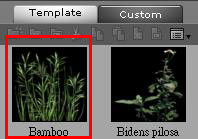
2. Click on template to load a Grass into the viewer
|
| |
 |
| |
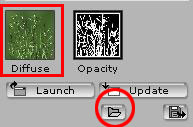
3. Select the Diffuse channel and click the load button to load the diffuse texture that you just saved |
| |
 |
| |
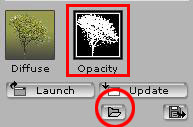
4. Select the Opacity Channel and repeat the last step
|
| |
 |
|
| |
| C. Click and create a forest in the viewer |
|