| C-1 |
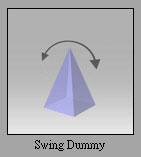
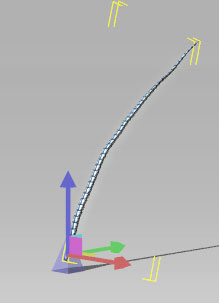
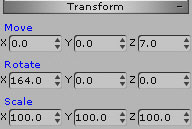
Turn on the Swing Dummy. |
| |
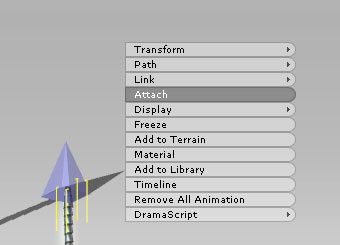
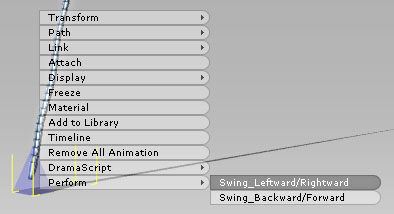
Select the Swing Dummy, and Right-click to select Perform/Swing Leftward & Rightward. |
| |
|
| |
Please do not interrupt the animation until the animation finishes naturally.
Make sure that the Preference/Enable Spring/Flex Effect box is checked. |
| |
|
| C-2 |
Change the speed of the swings. |
| |
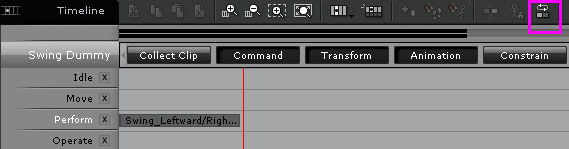
Select Swing Dummy in Scene Manager, and open Timeline. Make sure that Loop/Speed Switch box is not checked. |
| |
|
| C-3 |
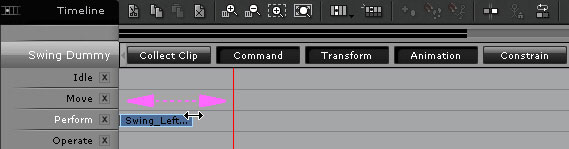
Select the Animation Clip in the Perform Channel, and drag it. |
| |
|
| |
The speed of the flap is now changed! If you want to loop the animation, please follow the C-4 instructions. |
| C-4 |
When you adjusted the speed of swings, you can loop the swing animation. |
| |
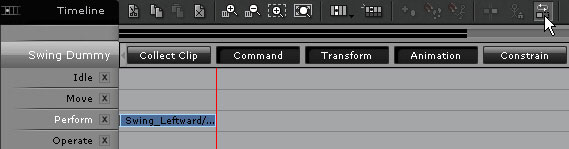
Make sure that Loop/Speed Switch box is checked. |
| |
 |
| |
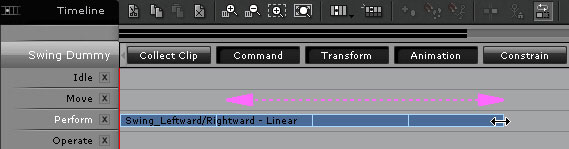
Select the Animation Clip in the Perform Channel, and drag it. |
| |
 |
| |
Play the animation from the beginning to see the result. Swing loop is now finished. |