|
|
|
| How to Dress up the Character? |
|
| How it works: |
| A |
Enter Character Composer Mode. |
| B |
Choose the accessories that you want for your character. |
| C |
Adjust props & character according to your needs. |
|
|
|
|
|
For more details, please follow the step-by-step instructions below. |
|
|
| A. Enter Composer Mode. |
| |
| A-1 |
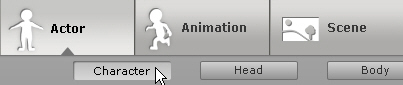
Apply any Character in Actor/Character. |
| |
|
| |
| A-2 |
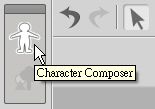
Click the Character Composer button. |
| |
|
|
|
|
|
| B. Choose the accessories that you want for your character. |
| You can dress up the characters in the Character Composer Mode. Apply different T-shirt, pants, shoes, accessories...etc to the character. |
| |
| B-1 |
Click on Prop. |
| |
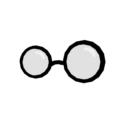
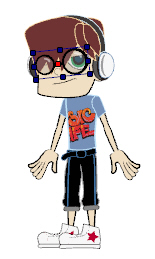
Choose the props that you want in the Content Manager, (eg. Glasses 02, Cap.) and double click to apply them. |
| |
|
| |
|
|
| C. Adjust props & character according to your needs. |
| |
| C-1 |
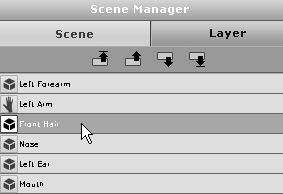
Select the Front Hair and Back Hair 01 in the Scene Manager, and press the Delete key to delete them. |
| |
|
| |
| C-2 |
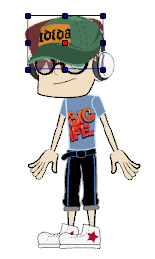
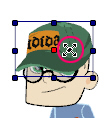
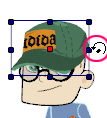
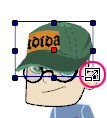
Move/Scale the Cap to the appropriate position/angle using the 3 methods as below. |
| |
| a. You can drag it to a new position when the cursor is on the active object. |
b. You can rotate it when the cursor is outside the active object. |
c. You can scale it when the cursor is on the border of the active object. |
 |
 |
 |
| |
 |
|
| |
 |
|
|
| |
| C-3 |
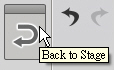
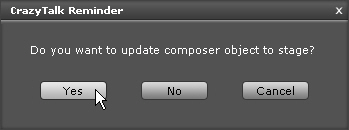
When you finished, please click Back to Stage. |
| |
|
| |
| C-4 |
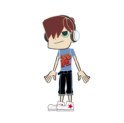
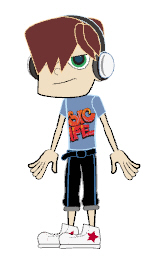
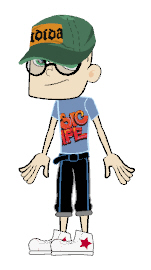
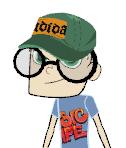
Your character is now updated! |
|
|
|
| |